Delete Hebcal Jewish calendar events from Outlook PC

If you need to remove Hebcal events from your Outlook calendar — for example, if you imported candle-lighting times with the wrong zip code — the steps depend on how you originally added the events.

Important: These instructions apply only if you manually imported Hebcal data into your primary Outlook calendar using a CSV or ICS file download. If you used Outlook’s Internet Calendar Subscription feature instead, you can simply unsubscribe from the calendar — no need to delete individual events.

Method 1: If you imported from an ICS file download

If you added events by clicking the “Download” button on the Hebcal website (the option that says “Use this download alternative if you prefer to manually import the calendar events into Outlook and merge with your own calendar”), the events were merged directly into your primary calendar from a .ics file. You can find and remove these events using search.

To delete holidays and other Jewish calendar events imported from ICS:

  1. Ensure that you’re using Classic Outlook (not “New Outlook”). Microsoft provides instructions on how to go back to classic Outlook for Windows.
  2. Open your Calendar and use the Search bar to search for hebcal. Most Hebcal events include a hebcal.com URL in the event description, so this search will find the majority of imported events.
  3. Select the events you want to delete (use CTRL+click to select multiple events, or CTRL+A to select all search results).
  4. Press DELETE to remove the selected events.

To delete candle-lighting and Havdalah times imported from ICS:

  1. In the Calendar Search bar, search for the city name you selected when generating your calendar (for example, Boston).
  2. Review the results to make sure you are only selecting Hebcal candle-lighting and Havdalah events (not other calendar events that mention your city).
  3. Select the events you want to delete and press DELETE.

Method 2: If you imported from a CSV file

When Hebcal exports to CSV format, it puts the text “Jewish Holidays” in the Location field. This makes it easy to find and remove those entries in bulk.

To delete holidays imported from CSV:

  1. Ensure that you’re using Classic Outlook (not “New Outlook”). Microsoft provides instructions on how to go back to classic Outlook for Windows.
  2. Open your Calendar and on the View menu, point to Current View and click Events.
  3. Click the Location column heading to sort the list by Location. You should see “Jewish Holidays” in the Location field for the holidays you imported.
  4. Click to select the first holiday you want to delete.
  5. Hold down SHIFT and click the last holiday you want to delete.
  6. Press DELETE to remove all the selected holidays from your Calendar.

To delete candle-lighting and Havdalah times imported from CSV:

  1. Open your Calendar and on the View menu, point to Current View and click Active Appointments.
  2. Click the Location column heading to sort the list by Location. You should see the city name you selected when generating your calendar (for example, Boston) in the Location field for the candle lighting and other zmanim events you imported.
  3. Follow steps 4–6 above.

Tip: If you’re setting up Hebcal again after deleting old events, consider using Outlook’s Internet Calendar Subscription feature instead of importing. Subscriptions keep Hebcal events on a separate calendar, so they won’t affect your free/busy status and can be removed all at once by unsubscribing.
CSV Jewish holiday download for older versions of Microsoft Outlook

Follow these instructions to add a Hebcal Jewish holiday calendar to older versions of Microsoft Outlook. This article applies to Outlook 97, 98, 2000, 2002, 2003 for Windows.

First, you’ll need to download an Outlook CSV (Comma-separated values) file from hebcal.com:

1. Open a web browser on your Microsoft Windows computer.

2. Fill out the form with your preferences and click the Create Calendar button

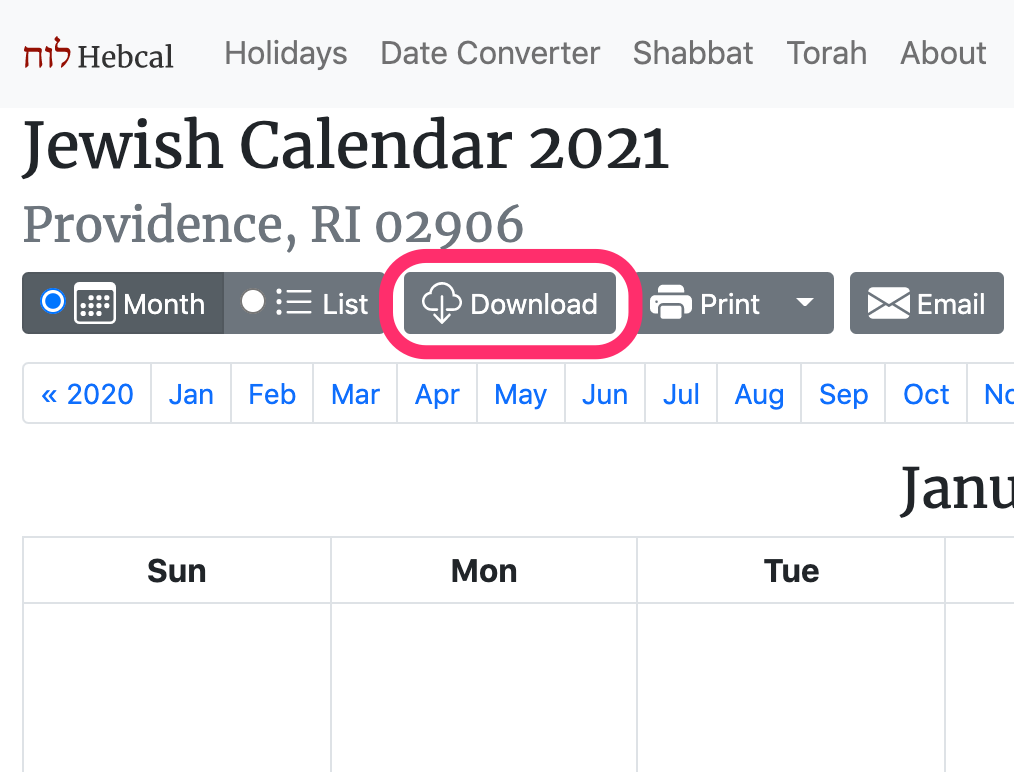
3. Click the Download… button

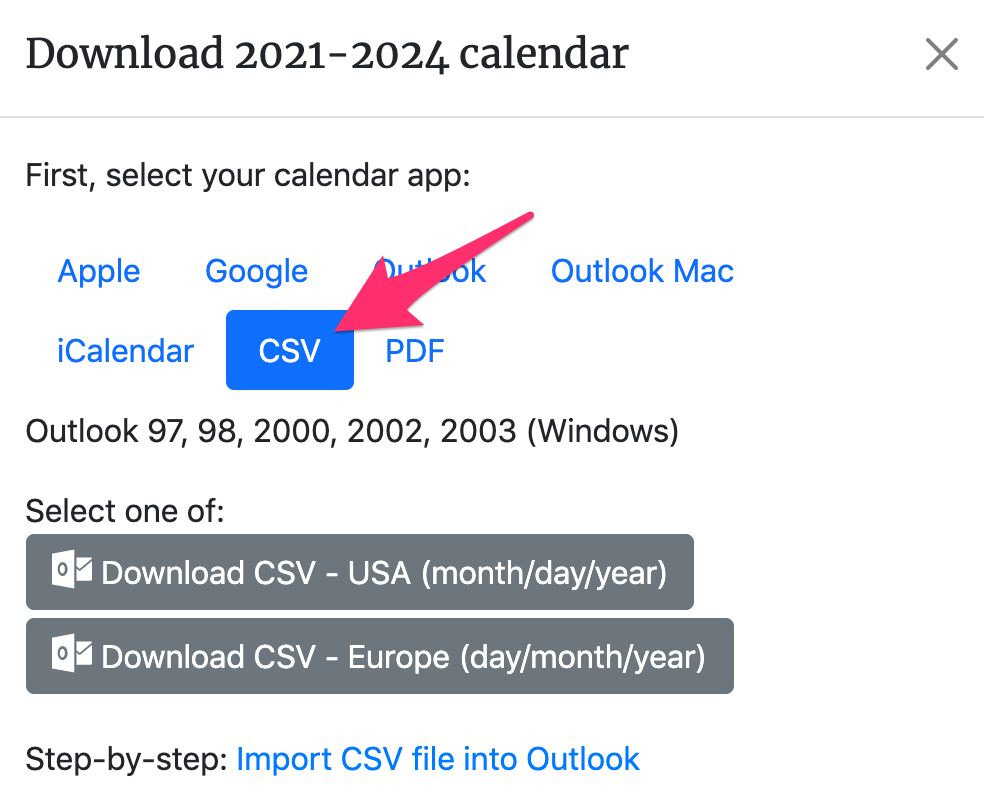
4. Select the CSV option from the Download dialog box

5. In the dialog box, select one of the two Download buttons – either Outlook CSV – USA date format (month/day/year) or Outlook CSV – European date format (day/month/year) (depending on whether you want USA or European date formats).

6. When prompted, specify a convenient name and location for the hebcal_DATE_LOCATION.csv file in the “Save As” dialogue box. We recommend saving the file on the Desktop

Next, import that file into Outlook:

  1. Open Microsoft Outlook
  2. Select the File -> Import and Export… menu option
  3. Select “Import from another program or file” and click Next
  4. Select “Comma Separated Values (Windows)” and click Next
  5. Find the hebcal_DATE_LOCATION.csv file you downloaded and select “Do not import duplicate items” and click Next
  6. Select Calendar and click Next. This will import your chosen file

Included in the Hebcal Jewish holiday downloads are options to select major holidays (Rosh Hashana, Yom Kippur, Pesach, etc.), minor holidays (Purim, Chanukah, etc.), special Shabbatot, public fasts (Tish’a B’Av, etc.), Rosh Chodesh, and modern holidays (Yom HaAtzma’ut, etc.).

macOS Calendar Jewish holidays download

Follow these instructions to subscribe to a Hebcal Jewish holiday calendar 5-year feed in Calendar.app on macOS (formerly called Mac OS X) desktop:

1. Open a web browser on your macOS computer.

2. Fill out the form with your preferences and click the Create Calendar button

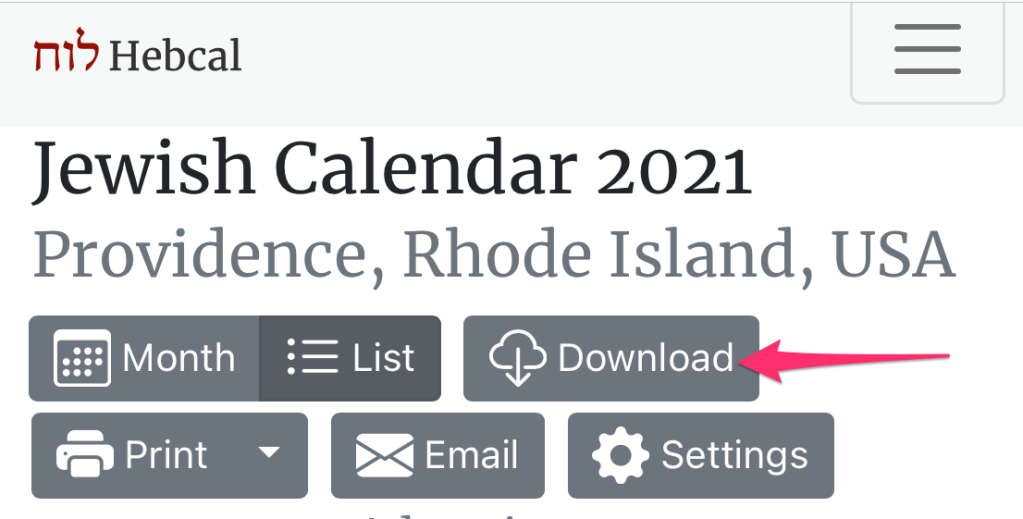
3. Click the Download… button

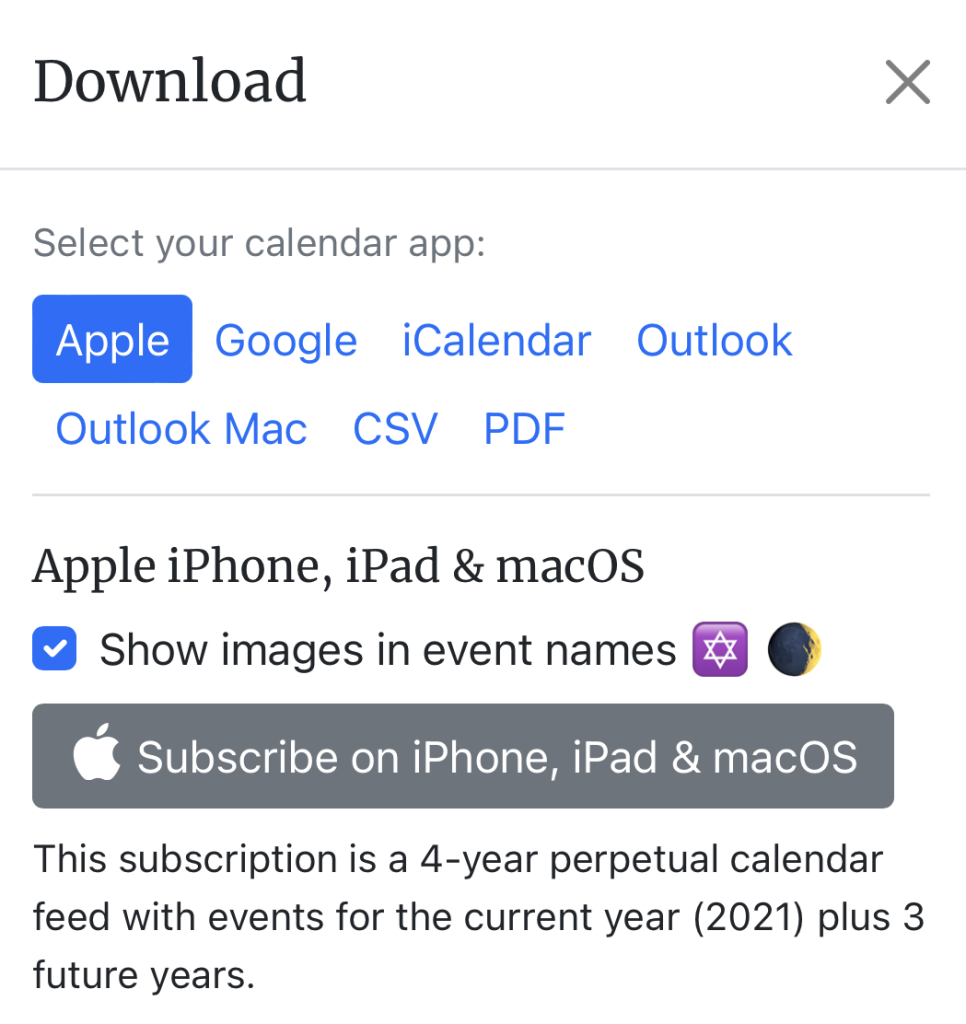
4. Select the Apple option from the download dialog box

5. Click on the grey “Subscribe on iPhone, iPad & macOS” button

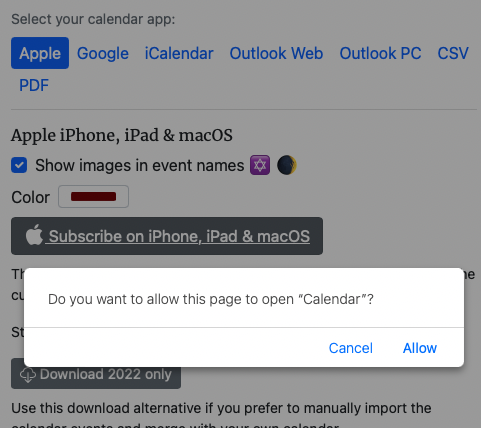
6. Click Allow if your browser prompts you Do you want to allow this page to open “Calendar”?

7. Apple Calendar (OS X Mountain Lion and later) or iCal (OS X Lion and earlier) will start up

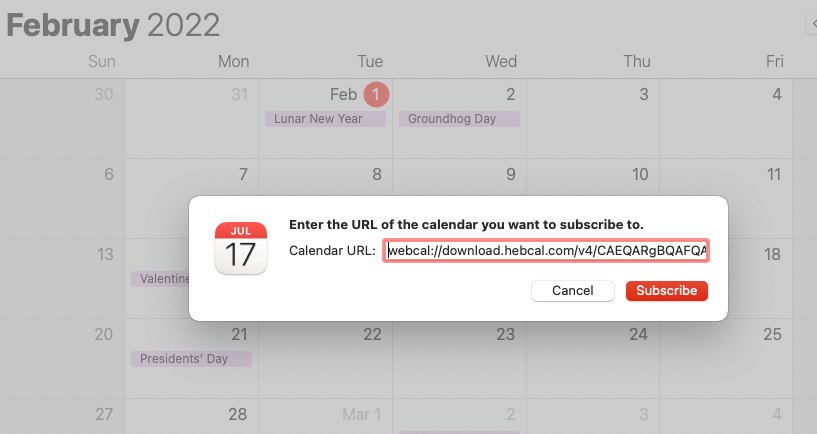
8. Click Subscribe in the “Calendar URL” dialog box

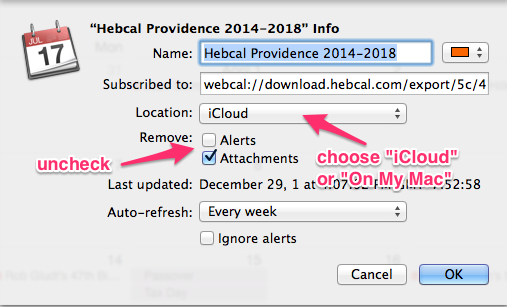
9. In the next dialog box, uncheck the “Remove Alerts” option if you wish to be notified of candle-lighting and Havdalah times.


macOS Calendar Info dialog box v3

10. Choose the Location for your subscription

  • Use iCloud if you wish to synchronize with other Apple devices such as iPhone or iPad
  • Use On My Mac if you wish to have the calendar subscription only on your desktop/laptop

11. Click OK

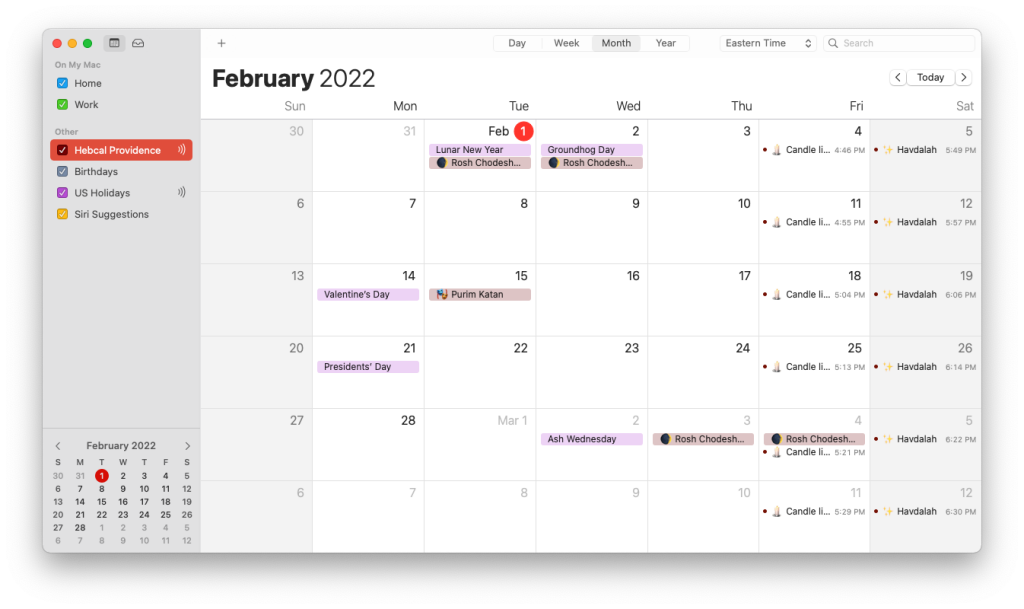
12. Congratulations! You should now see the Hebcal holiday calendar on your Calendar app

Google Calendar Jewish holidays download

Follow these instructions to add a Hebcal Jewish holiday calendar 5-year feed to Google Calendar.

Note: these instructions work best on a laptop/desktop computer and are less reliable on a mobile phone or Apple/Android tablet. On mobile devices, the Google Calendar app sometimes takes over from the mobile web browser. The mobile web version of Google Calendar won’t always subscribe to a third-party calendar.

1. Open a web browser on your computer. Navigate to https://www.hebcal.com/hebcal if you’re downloading a holiday calendar, or https://www.hebcal.com/yahrzeit if you’re downloading a Yahrzeit + Anniversary calendar

2. Fill out the form with your preferences and click the Create Calendar button

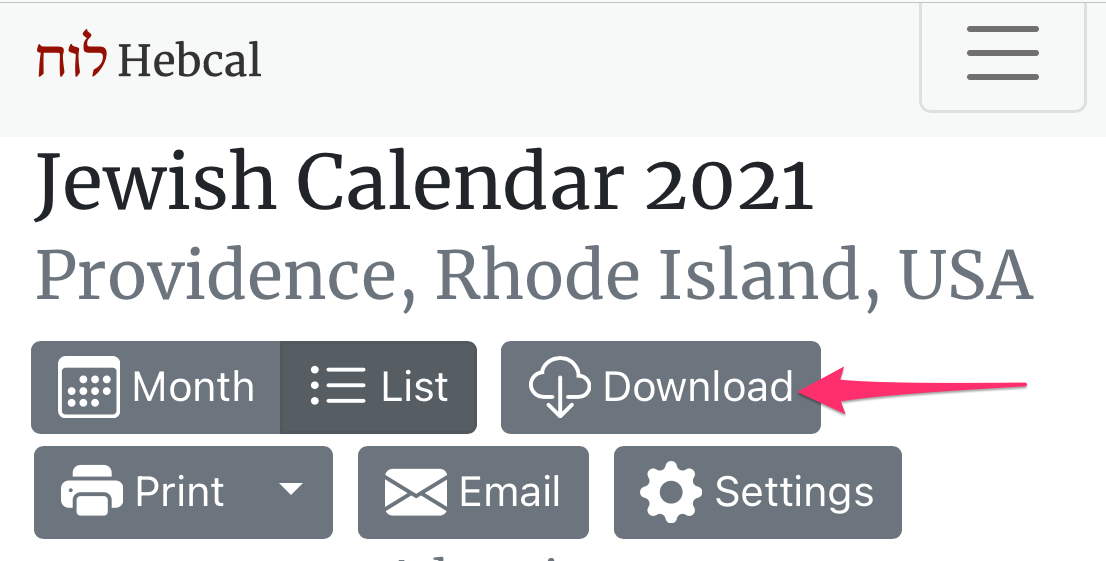
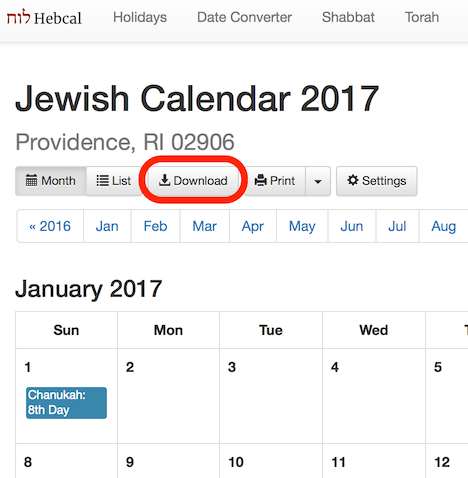
3. Click the Download button

Step 3: Click the Download button

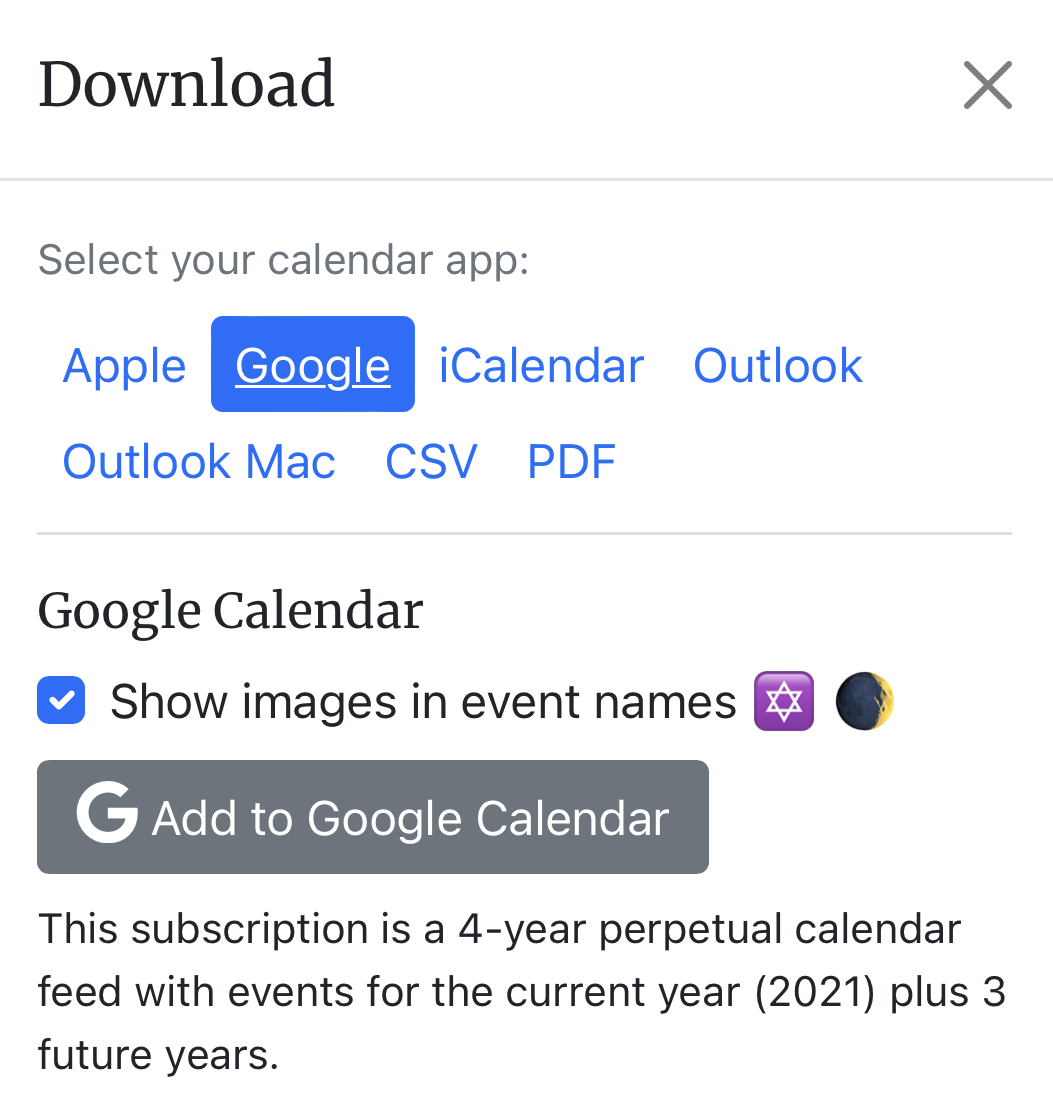
4. Select the Google Calendar option from the Download dialog box

Step 4: Select the Google Calendar option from the Download dialog box


5. Click on the grey “Add to Google Calendar” button

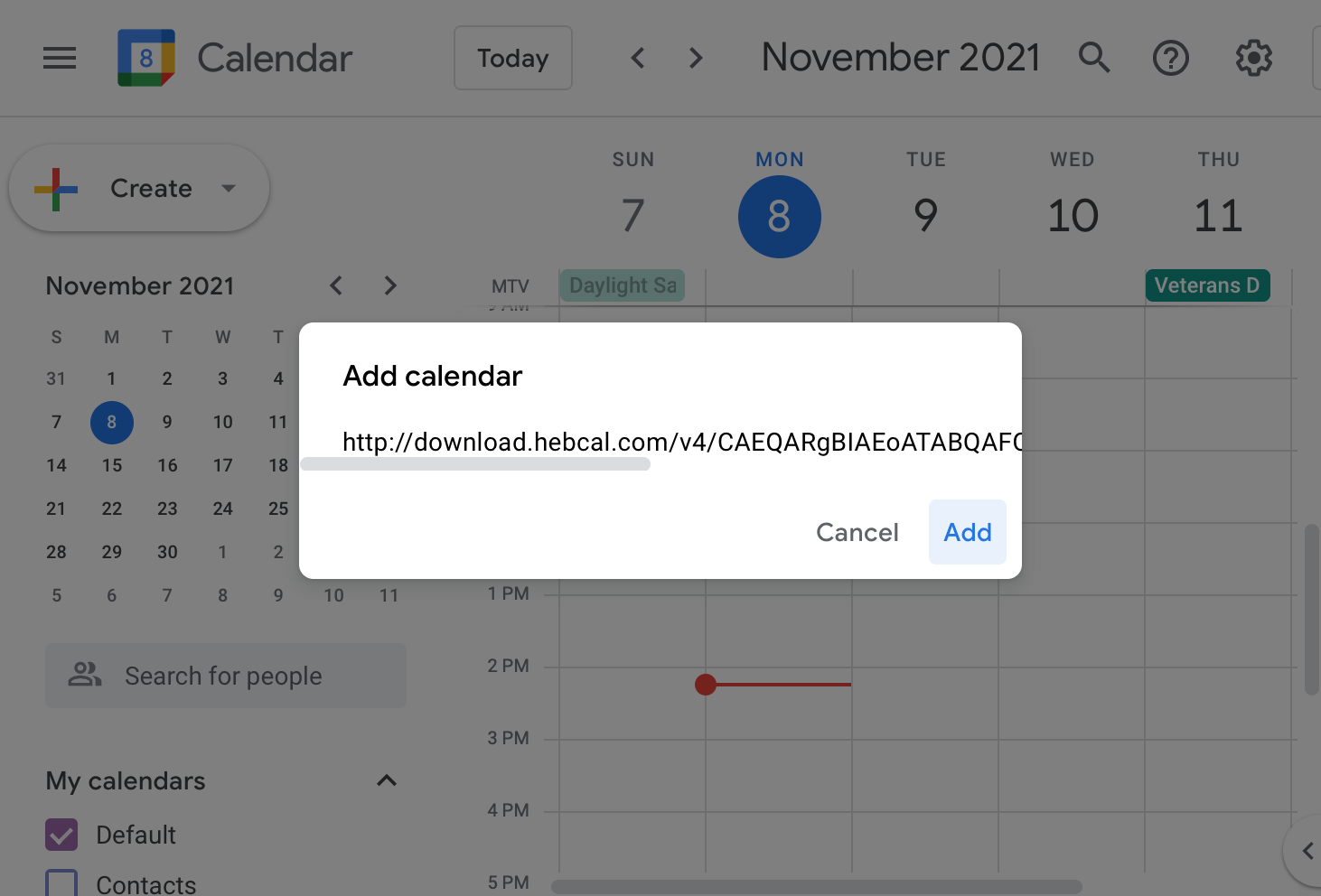
Step 6: Click Add when Google Calendar prompts you to add the calendar from download.hebcal.com

6. Click Add when Google Calendar prompts you to add the calendar from download.hebcal.com

7. Next, Google Calendar will display a brief message at the bottom of the screen that says “Calendar added.”

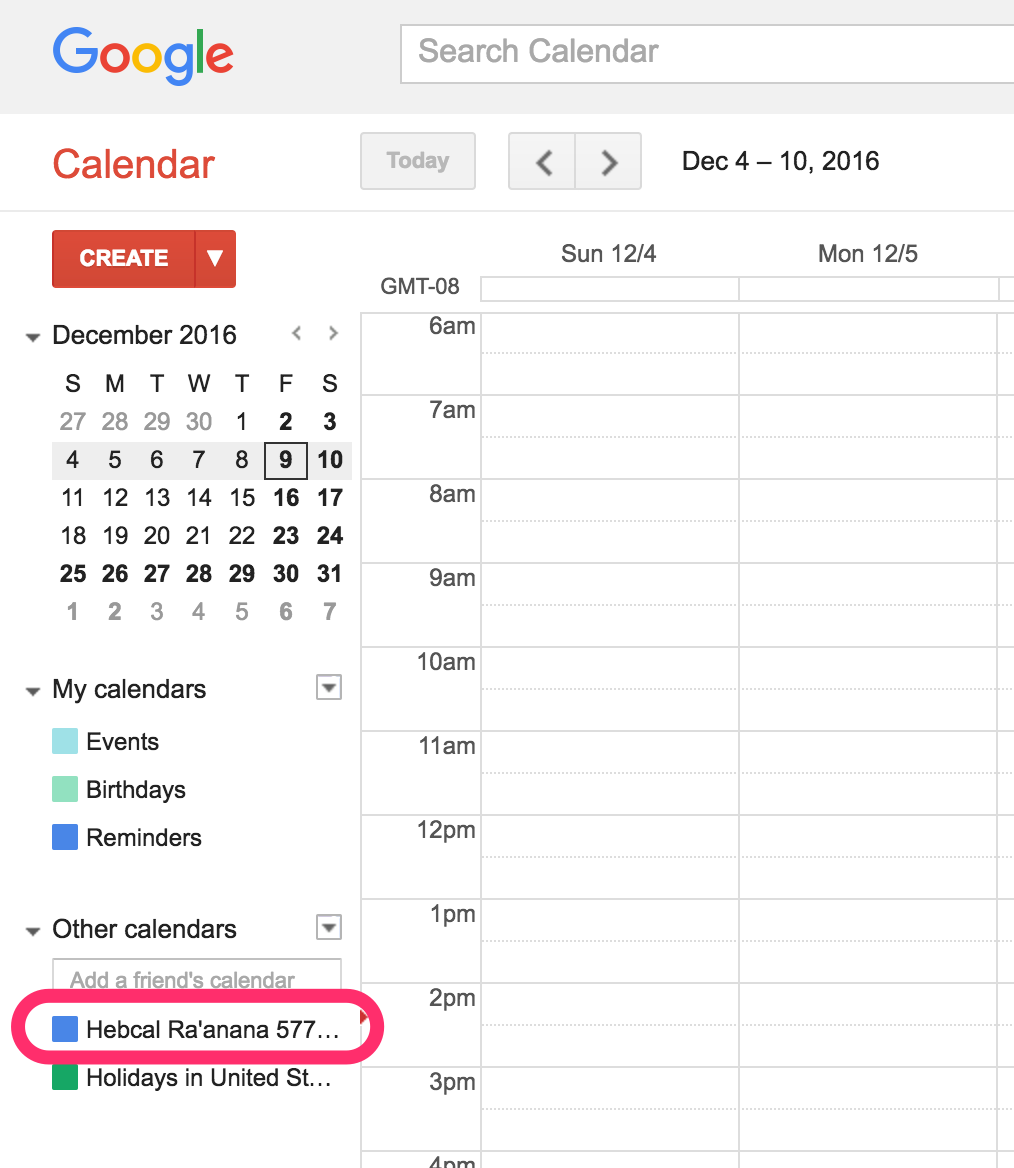
8. After 3-4 minutes, you’ll see your new calendar in the left sidebar under “Other calendars”

Step 8: After 3-4 minutes, you’ll see your new calendar in the left sidebar under “Other calendars”

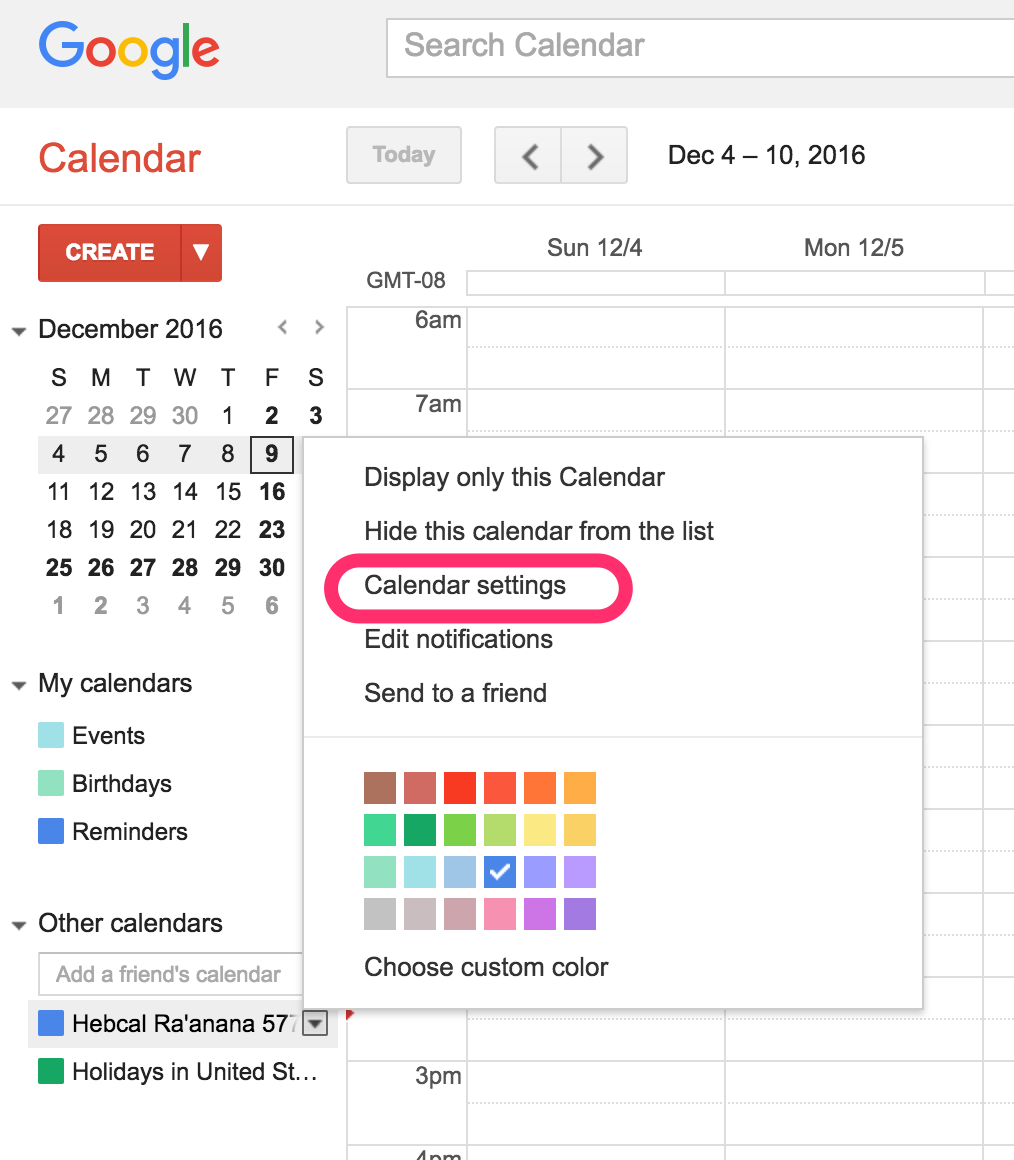
9. If you need to make changes, you can click on the Hebcal calendar in the left and select “Calendar settings” from the pop-up menu.

10. Congratulations! Your calendar is now subscribed and you will receive perpetual updates.

Note: if you prefer to manually import the calendar events into Google Calendar and merge with your own calendar, we offer Google Calendar alternative instructions.

Outlook for Mac 2011 Jewish holidays download

This page includes instructions on how to subscribe to a Hebcal Jewish holiday calendar 5-year feed in Microsoft Outlook for Mac 2011. This version of Outlook on macOS did not support iCalendar subscriptions and cloud sync, so it requires downloading a copy of events from Hebcal.com and manually managing them on your desktop.

Update: these are no longer the recommended instructions for modern versions of Microsoft Outlook on Mac. If you use Outlook 2016 for Mac or later, Microsoft now recommends that you sync your account to the Microsoft Cloud. “Available for Google accounts in Mail and Calendar, and Google, Yahoo, iCloud, and IMAP accounts in Outlook for Mac, this allows you to enjoy many of the best features of Mail and Calendar and Outlook for Mac.”

Follow these instructions for Outlook 2011 Mac:

  1. Open a web browser on your macOS computer.
  2. Fill out the form with your preferences and click the Create Calendar button
  3. Click the Download… button
  4. Select the Outlook Mac option from the Download dialog box
  5. Click on the Jewish Calendar YYYY.ics download button
Jewish_Calendar_2017_Providence___Hebcal_Jewish_Calendar 478px

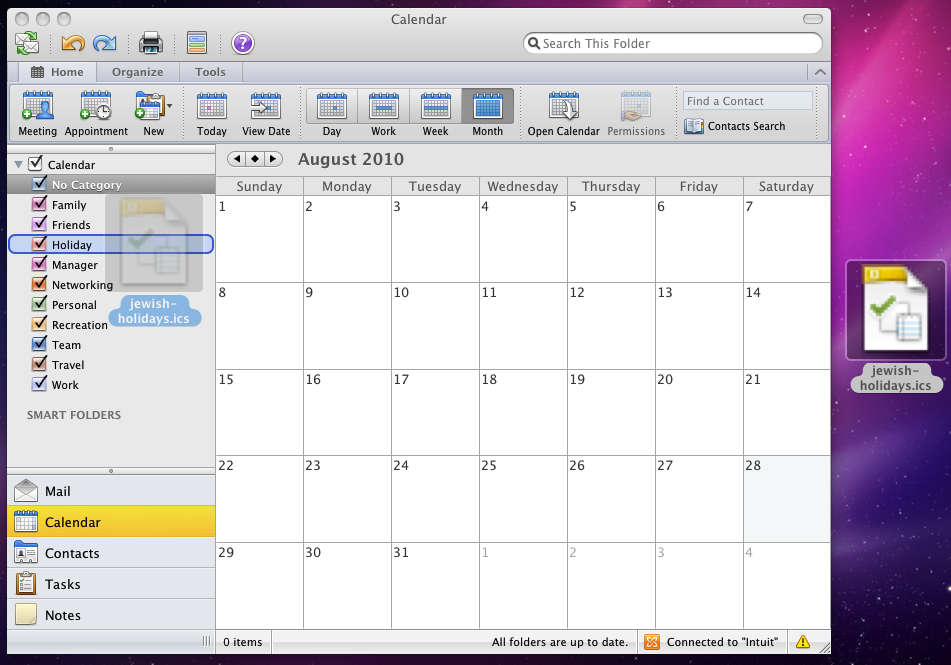
Next, find the downloaded .ics file (typically in your Downloads or Desktop folder). To get the Jewish holidays to show up with a color-coded category, be sure to drag and drop the .ics file you downloaded onto one of the category labels on the left pane as follows:

Screen shot of adding a hebcal.ics file to Outlook 2011 for macOS

If you simply drag the .ics file to Outlook 2011 icon in your dock or double-click on it, it will get categorized and color-coded as “No Category” which is probably not what you want.