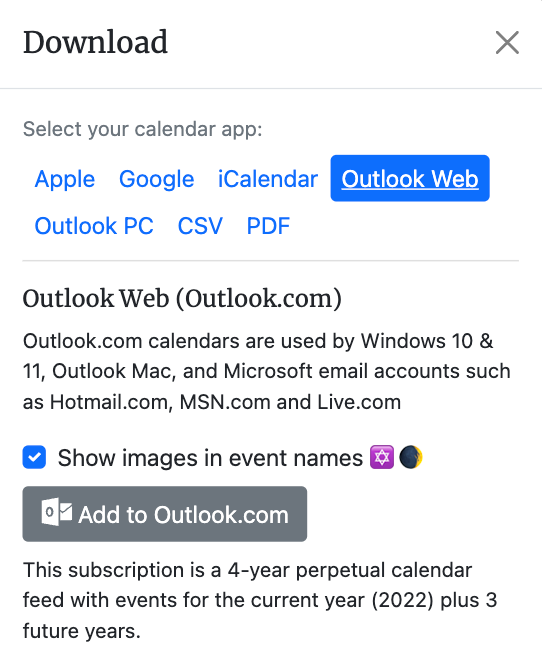
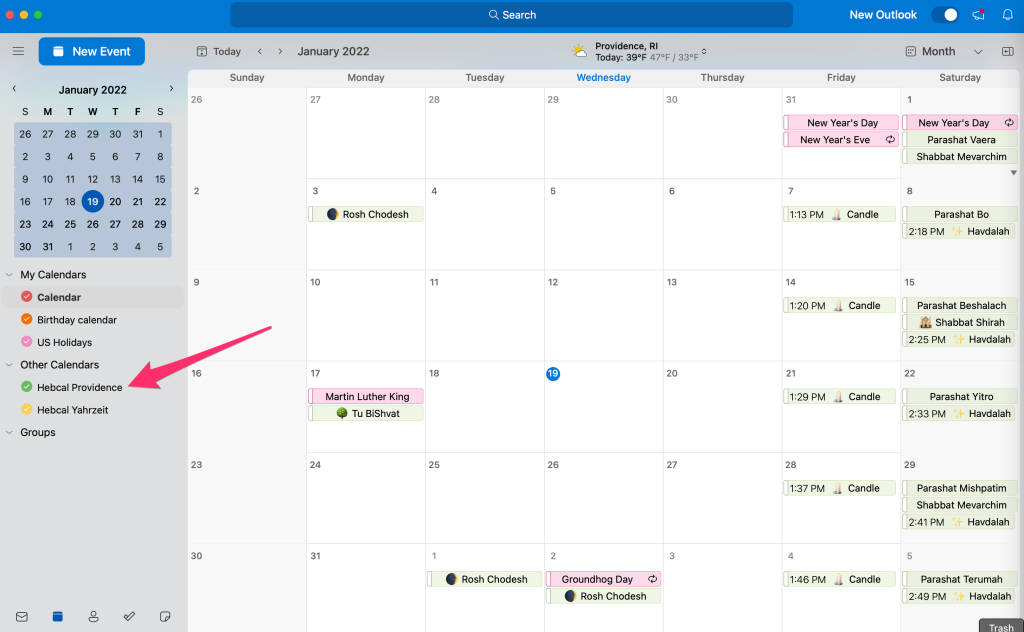
Importing Hebcal entries into PDA or desktop calendar program
This page tells you how to import Jewish Calendar data from the
hebcal.com website into your desktop calendar program.
Outlook CSV
[#csv]
First, you'll need to download an Outlook CSV file from hebcal.com:
- Go to http://www.hebcal.com/hebcal/
- Fill out the form with your preferences and click the "Get
Calendar" button
- Click on the "Export calendar to Palm, Outlook, iCal, etc." link
- In the "Export Outlook CSV file" section, click on the
hebcal_DATE_LOCATION_usa.csv or the
hebcal_DATE_LOCATION_eur.csv
link (depending on whether you want USA or European date
formats).
- When prompted, specify a convenient name and location for the
hebcal_DATE_LOCATION.csv file in the "Save As"
dialogue box. We recommend saving the file on the Desktop
Next, import that file into Outlook:
- Open Microsoft
Outlook
- Select the File -> Import and Export... menu option
- Select "Import from another program or file" and click Next
- Select "Comma Separated Values (Windows)" and click Next
- Find the hebcal_DATE_LOCATION.csv file you
downloaded and select "Do not import duplicate items" and click Next
- Selct Calendar and click Next. This will import your chosen file
- (optional) Synchronize your Pocket
PC or Palm
handheld with Outlook
For specific instructions for a particular version of Outlook, please
see the "How to Import Text Data" section of one of these articles:
Outlook - Removal of Hebcal entries
[#csv-remove]
When hebcal exports to CSV format, it puts the text "Jewish Holidays" in
the Location field. That is there to make it easy to remove entries
from your calendar if you got the wrong settings. For example, if you
were using candle-lighting times but entered the wrong zip code, you
could follow these instructions to remove all of the incorrect
entries:
- Open your Calendar and on the View menu point to Current
View and click Events
- Click the Location column heading to sort the list of holidays by
Location (you should see "Jewish Holidays" in the location field for the
holidays that you imported from CSV)
- Click to select the first holiday you want to delete
- Hold down SHIFT and click the last holiday you want to delete
- Press DELETE to remove all the selected holidays from your Calendar
To delete candle-lighting times, use these instructions:
- Open your Calendar and on the View menu point to Current
View and click Active Appointments
- Do steps 2-5 above
Outlook - incorrect dates for events
[#outlook-dateformat]
Some users have a mismatch between the date format they are
downloading (USA vs. European) and the setting you're using in your
control panel. This usually results in events that were supposed to take
place, for example, on September 2nd instead showing up on February 9th
(i.e. the date "9/2" vs. the date "2/9").
To find out if you've got a mismatch, go to "Regional Options"
Control Panel and pick "Date", and compare the date format you're
using. For example:
![[Regional Options Dialog Box]](/i/regional-options-date.gif)
If it says "M/d/yyyy" like mine does, download the USA format
from hebcal.com. If it says "dd-MMM-yy", be sure to download
European format from hebcal.com.
Apple iCal
[#ical]
Here is how to subscribe to an iCalendar ICS file from
hebcal.com:
- Go to http://www.hebcal.com/hebcal/
- Fill out the form with your preferences and click the "Get
Calendar" button
- Click on the "Export calendar to Palm, Outlook, iCal, etc." link
- Click on the "subscribe" link in the "Apple iCal (and other
iCalendar-enabled applications)" section
- Apple iCal
will start up
- Click Subscribe in the "Subscribe to:" dialog box
- Click OK in the next dialog box
- (optional) Use iSync to
synchronize data to your Palm or iPod
If you're looking for a 10-year iCal feed, see also our Jewish Calendar downloads for Apple iCal page.
Palm Date Book Archive (DBA)
[#dba]
First, you'll need to download a Palm DBA file from hebcal.com:
- Go to http://www.hebcal.com/hebcal/
- Fill out the form with your preferences and click the "Get
Calendar" button
- Click on the "Export calendar to Palm, Outlook, iCal, etc." link
- In the "Palm Desktop for Windows" section,
click on the "Export Palm Date Book Archive:
hebcal_DATE_LOCATION.dba" link
- When prompted, specify a convenient name and location for the
hebcal_DATE_LOCATION.dba file in the "Save As"
dialogue box. We recommend saving the file on the Desktop
Next, import that file into Palm Desktop:
- Open Palm Desktop
for Windows version 2.0 or greater
- Go to the Date Book view
- Select the File -> Import menu option
- Find the hebcal_DATE_LOCATION.dba file and choose
Open. This will import the chosen file
- HotSync
data to your Palm handheld
USA Holidays for Palm DBA
[#dba-usa]
Some folks have asked about USA holidays such as Thanksgiving, Labor
Day, Memorial Day, etc.
Download
DateBook+ Holiday updater from PdaWax.com and follow the
instructions enclosed in the zip file.
Lotus Notes is not supported by hebcal.com. These instructions
were provided by hebcal.com user Bruce Kahn. Your mileage may
vary.
- Start Notes
- Create a new mail memo
- Attach the iCalendar file you just downloaded and save the memo as
Draft
- Open the Draft memo up and right click on the attachment
- From the popup select "View" to see all entries in the file
- Select those you wish to import and then click on Import Selected or
Import All
- Delete the Draft mail memo
Unfortunately there is no direct Import ability for iCalendar data so
the steps above are necessary for now. Hopefully this will change in
the future.
Copyright
© 2007 Michael J. Radwin. All rights reserved.
Privacy Policy -
Contact -
News -
Donate
Last modified: Fri Nov 2 14:33:20 PDT 2007
($Revision: 1.37 $)