Follow these instructions to add a Hebcal Jewish holiday calendar 5-year feed to newer versions of Microsoft Outlook for Windows.
This technique uses Outlook’s “Internet Calendar Subscription” feature which keeps a separate calendar from your primary calendar. The calendar appears as an “overlay” and can be managed separately from your main calendar.
This method is preferred for modern versions of Outlook, e.g. Microsoft 365 / Office 365, Outlook 2021, Outlook 2019, Outlook 2016, Outlook 2013, etc. We still support the legacy CSV Jewish holiday download option used by Outlook 2007 and earlier versions.
1. Open a web browser on your Microsoft Windows computer.
- to download holidays and candle-lighting times, navigate to https://www.hebcal.com/hebcal
- OR, to download Yahrzeit + Anniversary calendar, navigate to https://www.hebcal.com/yahrzeit
2. Fill out the form with your preferences and click the Create Calendar button
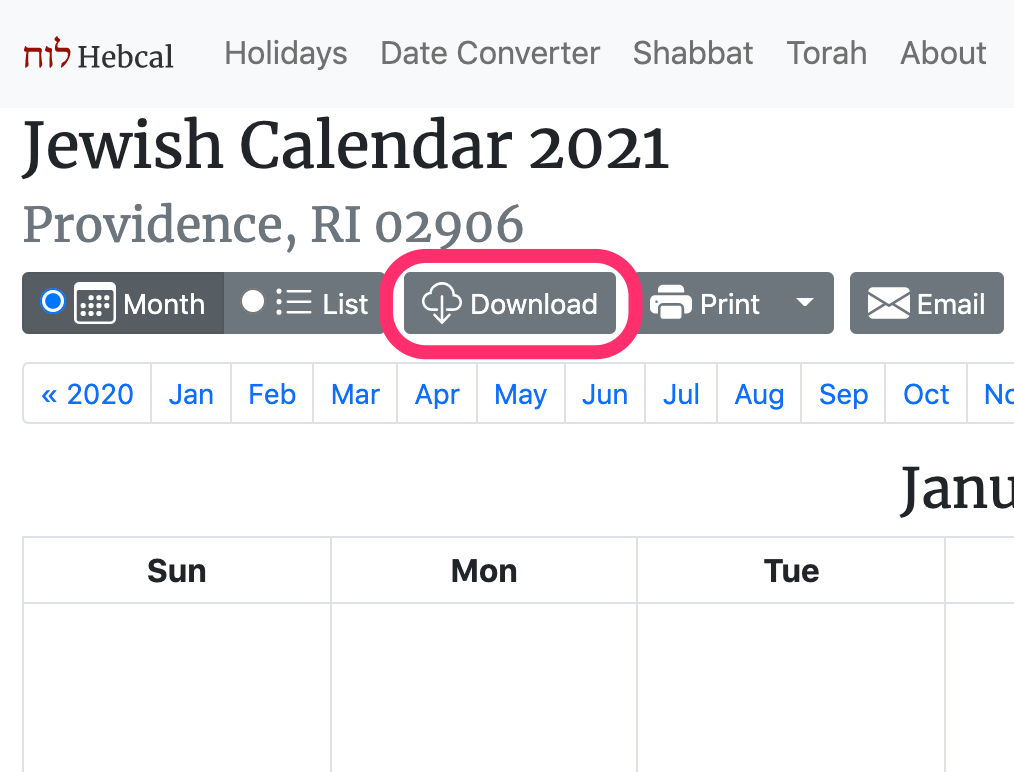
3. Click the Download… button
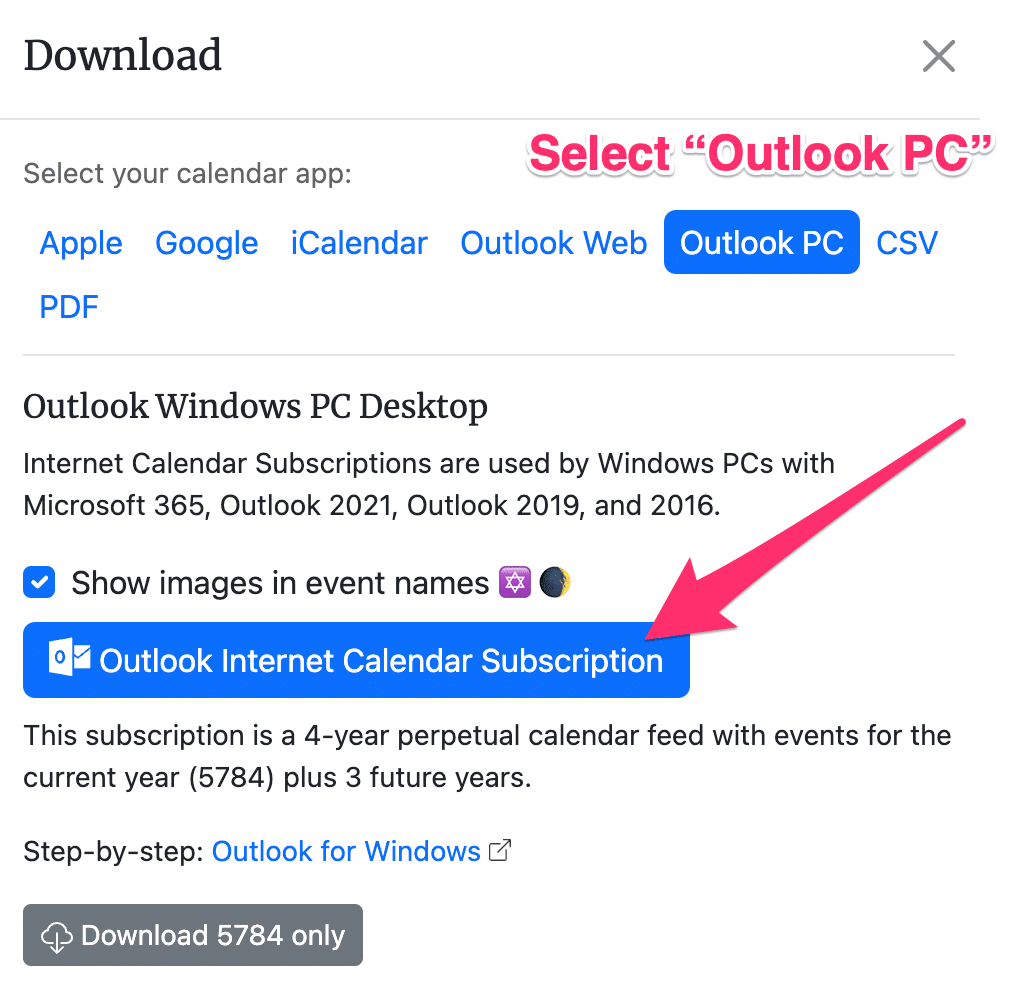
4. Select the Outlook option from the Download dialog box
5. Click on the Outlook Internet Calendar Subscription button
6. You might be prompted to acknowledge that you are opening a hyperlink. You should click Yes. Or, if you see a dialogue that asks Select an app to open this ‘webcal’ link, choose Outlook.
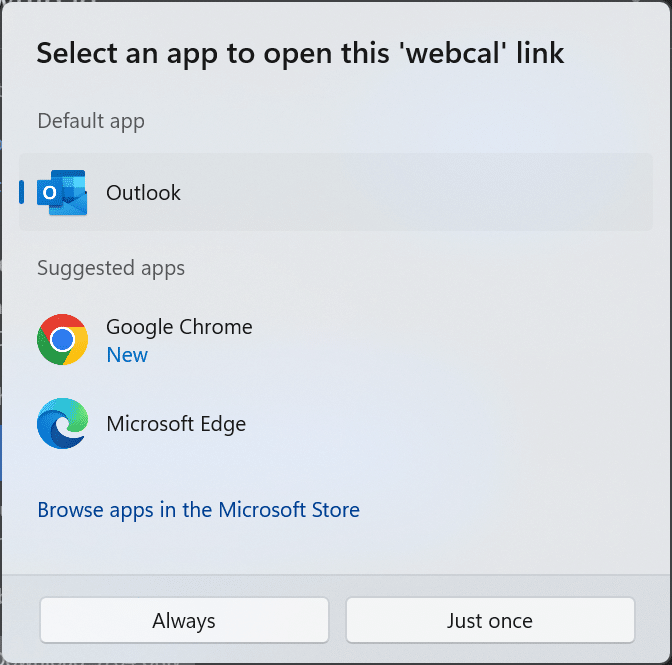
7. Microsoft Office Outlook 2021, Outlook 2019, Outlook 2016, Outlook 2013 will start up
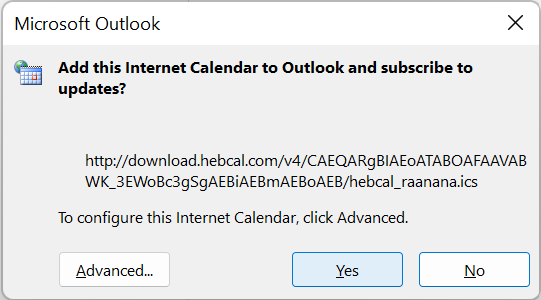
8. At the prompt, Add this Internet Calendar to Outlook and subscribe to updates, click Yes.
9. The Internet Calendar opens in side-by-side view in the Outlook Calendar and is added to the Navigation Pane in Calendar view under Other Calendars. The calendar will check periodically for any updates made by the calendar publisher.
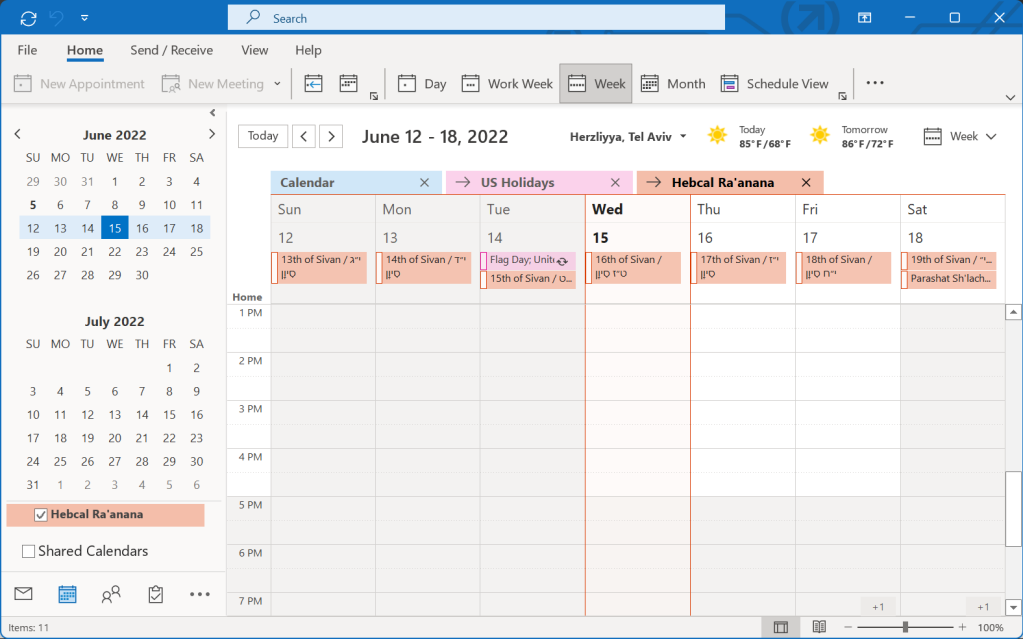
10. For more details, see Microsoft Outlook – Add and import calendars from Microsoft’s support site.